Guide: OpenSCAD Customizer
August 23, 2026 by Leszek
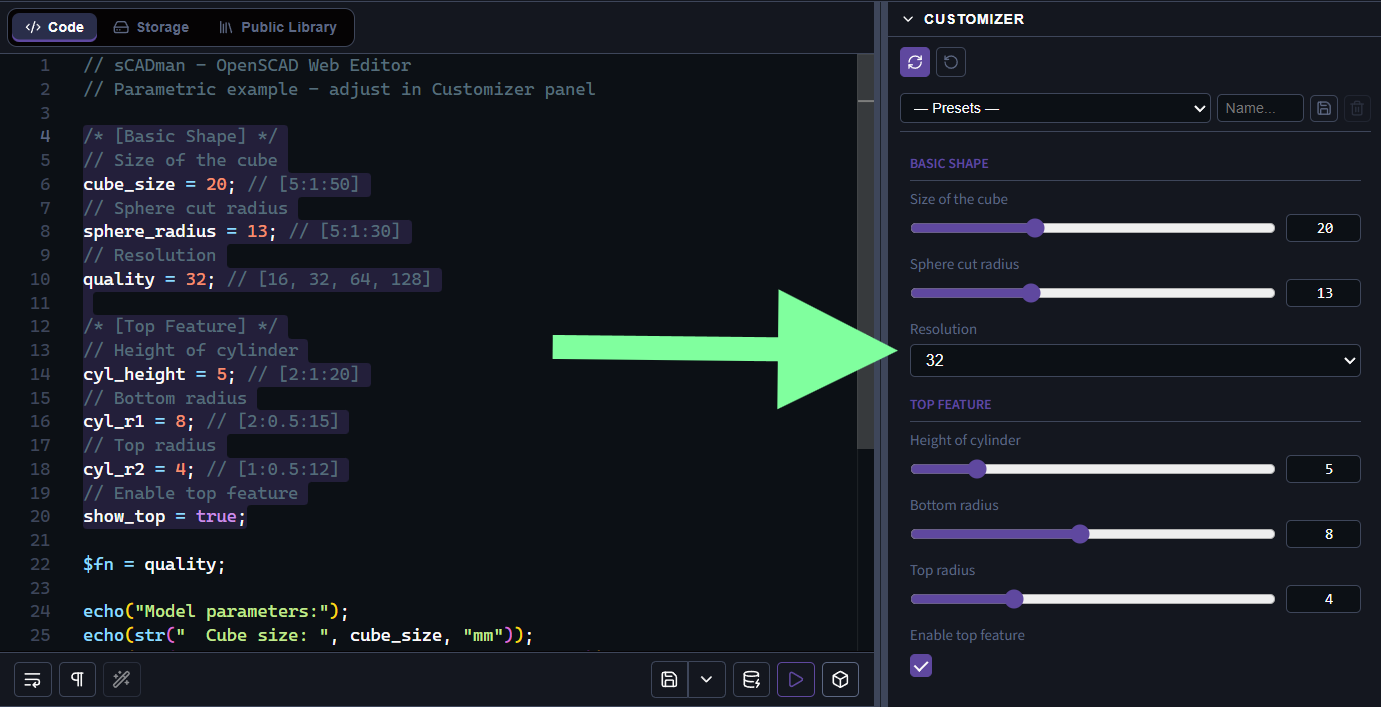
The Customizer is one of the most useful features in OpenSCAD. It turns ordinary variables at the top of your script into interactive controls (sliders, dropdowns, checkboxes, etc.) so that anyone can adjust a model without reading or editing the code.
In sCADman the Customizer appears as a dedicated panel. When a compatible .scad file is loaded, the panel automatically detects parameters and lets you change them live. The values are injected into the model before compilation, exactly as the official OpenSCAD Customizer does.
This page explains the full syntax, all supported widget types, grouping, hiding, limitations, and recommended practices.
TIP: If you share your project via URL in sCADman (Export -> URL), the Customizer values are saved in the address - whoever opens this link will see the values you set.
1. What the Customizer Does
OpenSCAD looks for specially formatted variable assignments near the top of the main file. From the comments that follow those assignments it decides:
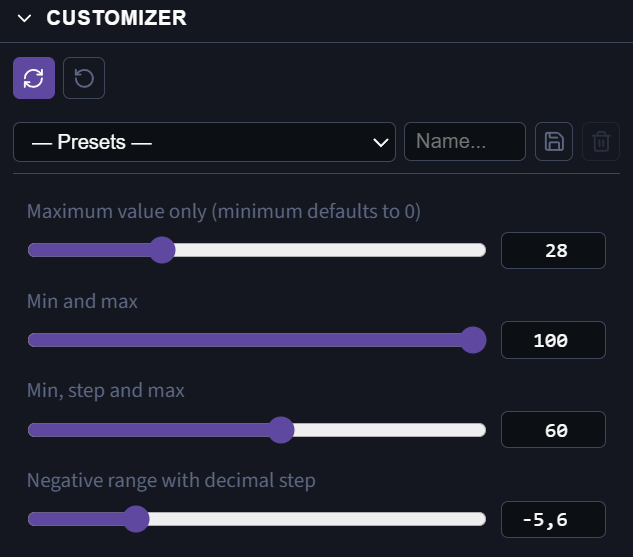
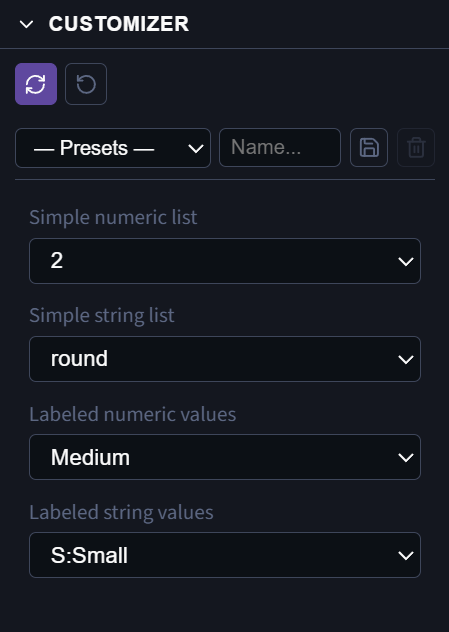
- which widget to show (slider, dropdown, checkbox, spinbox, text field…),
- what range or list of values is allowed,
- how to group the controls into tabs.
The original source code stays untouched. Only the values of the exposed variables are overridden at compile time.
2. Basic Requirements
For a variable to appear in the Customizer it must satisfy these rules:
| Rule |
Explanation |
| Location |
Must be in the main .scad file (not inside a file that is only included or used). |
| Placement |
Should appear before the first module or function that contains a { block. |
| Value type |
Only simple literals are allowed: numbers, strings, booleans, or arrays of up to four numbers. |
| No expressions |
width = 10 + 5; or name = str("A","B"); will be ignored. |
✅Correct:
❌Incorrect (will not appear):
height = 20 * 2;
wall   = thickness / 2;
The general form is:
variable_name = default_value;
The description comment must start at the beginning of the line (no leading spaces).
3.1 Checkbox (boolean)
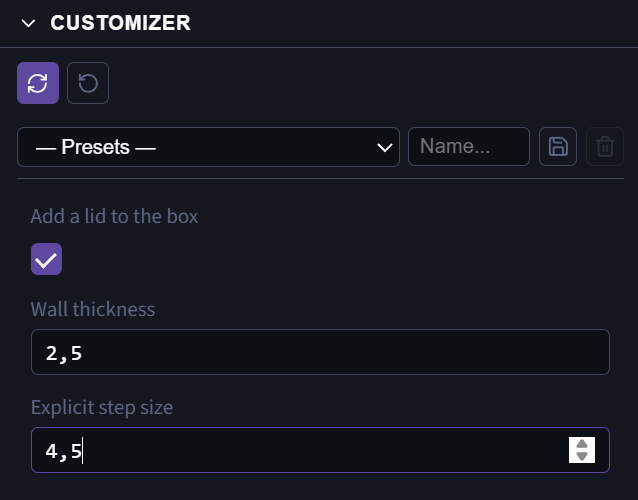
A boolean automatically becomes a checkbox. No extra hint is needed.
3.2 Spinbox (number)
3.3 Slider
size = 50;
size = 50;
size = 50;
offset = 0;
3.4 Drop-down / Combo box
quality = 2;
shape = "round";
size = 20;
size = "M";
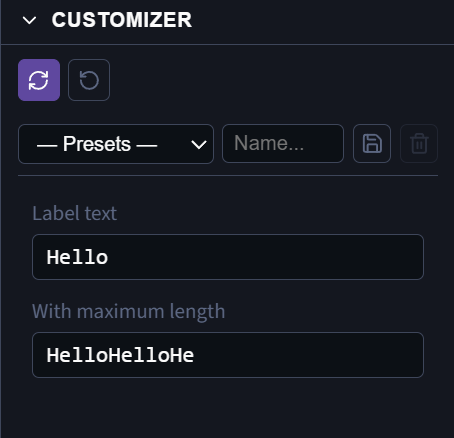
3.5 Text box (OpenSCAD ≥ 2021.01)
label = "Hello";
label = "Hello";
3.6 Vector / Array (1–4 numbers)
size2 = [30, 20];
size3 = [30, 20, 10];
size4 = [30, 20, 10, 5];
 Each component gets its own control.
4. Grouping Parameters with Tabs
Tabs are created with block comments:
width = 80;
height = 40;
has_lid = true;
corner_style = "round";
Special tab names
| Tab name |
Behaviour |
[Global] |
Parameters appear on every tab |
[Hidden] |
Parameters are completely hidden from the UI |
| (none) |
Parameters go into the default “parameters” tab |
You can have multiple [Hidden] sections.
debug = false;
version = 1;
5. Recommended Structure for a Customizable File
A clean, maintainable layout looks like this:
length = 100;
width = 60;
wall = 2.5;
holes = true;
hole_d = 4;
$fn = 64;
TIP: Keep related parameters together, give every control a short description, and hide anything the end user should not change.
6. Limitations
- Only literal values are accepted (no arithmetic or function calls on the right-hand side).
- Arrays longer than four elements are not supported.
- Multi-line text fields are not available.
- Parameters defined inside modules or after the first
{ block are ignored.
- The Customizer does not evaluate the rest of the script; it only reads the annotated assignments.
7. How the Customizer Works in scadman.xyz
In scadman.xyz the Customizer panel:
- Automatically scans the current editor content for compatible parameters.
- Shows the same widgets (sliders, dropdowns, checkboxes, etc.) that desktop OpenSCAD would show.
- Live-updates the preview when you change a value.
- Stores the current overrides so they can be shared via the URL together with the code.
- Respects tabs and the
[Hidden] section exactly as the official implementation does.
Because compilation happens entirely in the browser, changing a Customizer value feels instantaneous.
TIP: sCADman customizer allows you to save presets using the tools above the parameters – they're easy to find. Using presets eliminates the need to memorize individual settings and allows you to easily return to them.
8. Full Example
length = 80;
width = 50;
height = 30;
wall = 2.4;
has_lid = true;
lid_gap = 0.4;
$fn = 48;
difference() {
cube([length, width, height], center = true);
translate([0, 0, wall])
cube([length - 2*wall, width - 2*wall, height], center = true);
}
if (has_lid) {
translate([0, 0, height/2 + wall + 3]) {
cube([length + 2, width + 2, wall], center = true);
translate([0, 0, -wall/2 - 1])
cube([length - 2*wall - 2*lid_gap,
width - 2*wall - 2*lid_gap,
2], center = true);
}
}
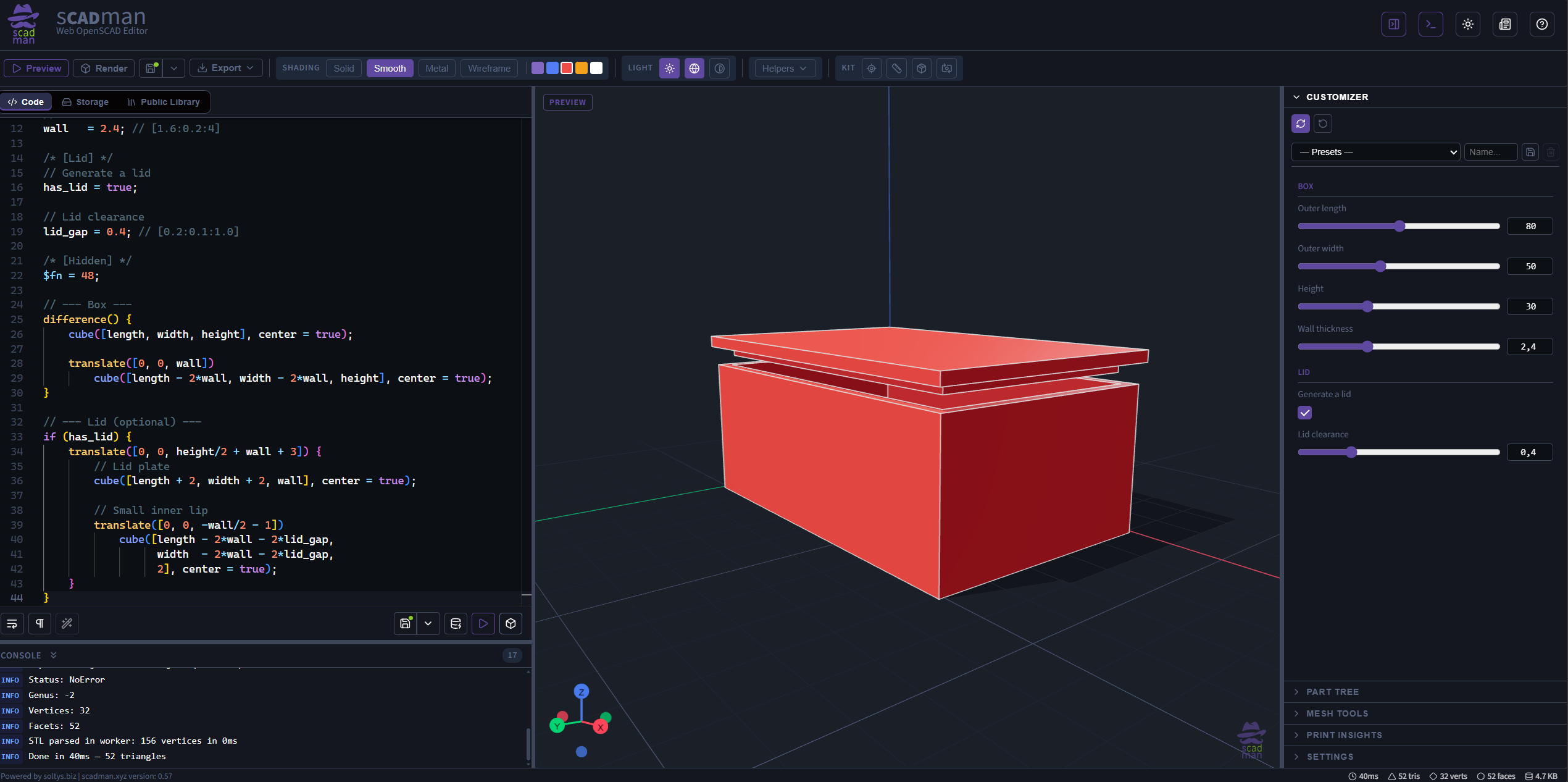
This short script already produces a fully interactive model: users can resize the box, toggle the lid, and adjust clearance without ever looking at the source.
🔗Open in sCADman
9. Tips for Authors
- Always write a one-line description above each parameter.
- Prefer labeled dropdowns (
[10:Small, 20:Medium]) over raw numbers when the meaning is not obvious.
- Put rarely-changed or internal values in a
[Hidden] section.
- Keep the number of visible parameters reasonable — too many controls overwhelm users.
- There are differences between what different versions of OpenSCAD can handle in the customizer. sCADman supports all the parameters mentioned in the article.
The Customizer is the bridge between a parametric script and a friendly interface. Once you master the simple comment syntax shown above, any well-structured OpenSCAD file can become an interactive design tool that other people can use immediately.